
In this article
Share with your community!


Edited & Reviewed
 Edited & Reviewed
Reading time 8 mins
Updated on December 4, 2025
In this article
Share with your community!
Important Warning for IT teams
Windows 11 Pro 23H2 has reached end-of-support. Devices still running this edition are no longer receiving security updates or fixes; they are already outside vendor support. That alone is a risk. Make sure to update your endpoints to Windows 11 24H2 or 25H2 immediately.
But here’s where it becomes a bigger problem for Enterprise environments:
We continue to see cases where devices that should be running Windows 11 Enterprise never actually upgrade and are quietly stuck on Pro. IT assumes everything is fine, while those devices drifted into an unsupported status.
The issue is silent:
- The OS stays on Pro with no warning
- Enterprise activation is assumed but never completed
- Devices move out of support without detection
If your organisation relies on Microsoft 365 Enterprise or Education licensing to handle Pro → Enterprise upgrades automatically, it’s critical to verify that the upgrade truly happened.
This article covers how to check if you’re impacted today, and how to stop unsupported devices from slipping through in the future.
Why Enterprise-Licensed Devices Stay Stuck on Pro
Most IT teams relying on Microsoft 365 Enterprise or Education (including non-profit) licensing assume their Windows 11 Pro devices automatically upgrade to Enterprise when a correctly licensed user signs in. But with Windows 11 Pro 23H2 having reached end-of-support on November 10, real environments are revealing something unexpected: some devices never upgraded at all.
This issue occurs more often than you might expect, due to these primary causes:
- Shared, test, or service accounts signing in first
- Enterprise/Education licences not assigned to the logged on user
- Activation not triggering, even when licensing is correct
With Pro now out of support, any device that didn’t upgrade is exposed without IT having any indication.
This issue mainly affects organisations using Microsoft 365 Enterprise (E3/E5) or Education (A3/A5) licensing, because these environments rely on the automatic Pro-to-Enterprise edition upgrade.
Organisations using Microsoft 365 Business Premium or similar Business licensing are not affected in the same way, as Windows 11 Business follows the same End-of-Life timeline as Windows 11 Pro.
Additionally, Windows 11 Enterprise and Education editions include an extra year of support compared to Home and Pro. This often results in mixed environments where Pro is already out of support, while Enterprise still has extended lifecycle coverage.
Lifecycle information:
- Windows 11 Home & Pro: https://learn.microsoft.com/en-us/lifecycle/products/windows-11-home-and-pro
- Windows 11 Enterprise & Education: https://learn.microsoft.com/en-us/lifecycle/products/windows-11-enterprise-and-education
This difference matters because when the automatic upgrade doesn’t happen, IT teams may unknowingly run unsupported Pro builds inside environments that assume full Enterprise coverage.
This article explains why it happens, how to check for it, and how to surface these gaps before they become a security and compliance problem.
Wrong Assumption: “Enterprise Licensing Takes Care of It”
In most organisations, the workflow is simple on paper: you buy devices with Windows 11 Pro, assign Microsoft 365 Enterprise or Education licences to your users, and trust the automatic upgrade path to move the OS from Pro → Enterprise once a correctly licensed user signs in.
The process is designed to be seamless, and because it usually works, many IT teams treat it as a background mechanism that doesn’t require verification.
But this assumption is exactly what creates the blind spot.
The upgrade depends on a licensed Enterprise or Education user signing in during the activation window. If that never happens, the device simply stays on Windows 11 Pro, silently, without errors, and without IT noticing.
Here are the most common scenarios where the upgrade fails:
- Shared, test, or service accounts sign in and continue using the device
- A user signs in who does not have an Enterprise/Education licence
- Activation never triggers, even when licensing is correct
- A licensed Enterprise/Education user doesn’t sign in within the rolling 30-day activation interval, so the device silently stays on Windows 11 Pro
When any of these conditions occur, the device remains on Windows 11 Pro indefinitely, despite organisational assumptions that it is already running Enterprise.
Most organisations don’t have a process to validate OS edition drift. And while this issue has existed across multiple Windows versions, the End-of-Life of Windows 11 Pro 23H2 has now turned a long-standing blind spot into a more urgent operational risk.

Warning: Windows 11 Pro 23H2 Is Now Out of Support
On November 10, Windows 11 Pro 23H2 reached its end-of-support deadline. That means devices still running this edition no longer receive security updates or fixes.
Normally, this wouldn’t worry organisations with Microsoft 365 Enterprise licensing, because the expectation is that Pro devices upgrade to Enterprise long before support ends.
But this cycle exposed a critical gap:
Devices that never activated Enterprise are now stuck on an OS that is already out of support. And the catch is simple but serious:
- The OS shows Pro 23H2, not Enterprise.
- IT teams assume the upgrade happened.
- No alert is generated.
- The device quietly falls behind Microsoft’s support window.
In several Applixure customer environments, we’ve already seen machines that should be Enterprise still sitting on Pro weeks after deployment, sometimes even months later.
This isn’t a policy failure. It’s a visibility failure.
When the upgrade mechanism doesn’t trigger, the organisation ends up with unsupported endpoints without ever realising it.
One Applixure customer summed it up well: “It’s great that you’re taking care of this; in the past, we’ve only managed to react to these kinds of things when it’s already too late.”

Why Devices Fail to Upgrade to Enterprise (Even When Everything Looks Correct)
On paper, the upgrade from Windows 11 Pro to Enterprise should be automatic. In practice, there are several points where it quietly fails, and because the OS doesn’t warn you, these issues often go unnoticed.
Here are the most common causes we’re seeing across real customer environments:
1. The primary user doesn’t have an Enterprise or Education licence
Enterprise activation only completes when a user with the correct Enterprise or Education licence signs in during the 30-day activation window. If the device is actively used by someone with a lower-tier licence, the upgrade never triggers.
This is especially common with:
- Shared devices (frontline, classrooms, meeting rooms, labs)
- Interns, contractors, or part-time workers with Business or lower-tier licences
- Local accounts or service accounts used for regular work
- Desktops or shared workstations that rotate between users
When none of the active users have the correct licence, the device simply remains on Pro indefinitely.
2. Activation delays or failures
Even when licensing is correct, Enterprise activation doesn’t always happen reliably. We’ve seen devices remain on Pro for days or weeks without any clear reason. No error. No warning. No visibility.
3. Shared or unlicensed use becomes the “normal state”
In many organisations, a device may technically be assigned to an Enterprise/Education user, but in daily use it’s accessed by someone else entirely.
Examples include:
- A shared desktop constantly used by staff who don’t have Enterprise/Education licences
- A laptop reassigned temporarily but still expected to “auto-upgrade”
- Devices in departments where role changes affect licence levels
If the licensed user never actively uses the device, activation never happens.
4. Assumption-driven processes
Many teams assume the licensing workflow “just works,” so OS edition checks rarely make it into:
- build or deployment validation
- lifecycle reviews
- compliance reporting
- feature update planning
This creates the perfect blind spot: the conditions required for Enterprise activation are never met, but the organisation still believes the upgrade already happened.
And because this has been an ongoing issue across multiple Windows versions, each new End-of-Life deadline, like the one for Windows 11 Pro 23H2, turns what was previously a quiet misconfiguration into a real operational and security risk.

The Real-World Impact of Running an Unsupported OS
When a device stays on Windows 11 Pro 23H2 after its end-of-support date, the organisation is exposed in ways that aren’t immediately obvious:
1. Security Vulnerabilities Accumulate
Devices stuck on out-of-support builds no longer receive critical security updates. Over time, this creates exploitable gaps, especially damaging in hybrid and remote environments.
2. Compliance Issues Go Undetected
Many organisations assume their Enterprise licensing guarantees compliance. But unsupported Pro editions can put you out of alignment with:
- internal security baselines
- audit requirements
- regulatory frameworks
All while the device reports as “healthy” elsewhere.
3. Increased Operational Risk
Unsupported OS versions introduce unpredictable behaviour:
- degraded performance
- complete lack of patching
- management tooling issues
- deployment compatibility problems
- differing end-user experience, which increases support complexity for IT
These risks only surface when something breaks, often at the worst possible moment.
4. Hidden Backlogs Build Up
If no one is monitoring OS edition drift, you could have dozens or hundreds of endpoints requiring urgent attention all at once.
5. False Sense of Safety
The most dangerous impact is the belief that things are already handled. Enterprise licensing suggests protection, but the underlying OS tells a different story.
This is exactly the scenario where visibility matters most: when the risk is real, but the symptoms are invisible.
Many IT teams have been heavily focused on Windows 10 lifecycle work, and as a result, the Windows 11 Pro/Business 23H2 End-of-Life deadline has gone unnoticed in many environments, especially where no tool is in place to surface OS edition and support gaps early.
How to Check Whether Your Computer Fleet is Affected
You don’t need a major investigation to verify whether this gap exists in your environment. A few targeted checks will already reveal if devices failed to upgrade to Enterprise.
1. Pull a list of OS editions across your fleet
Start by identifying every device still running:
- Windows 11 Pro 23H2, or
- any Windows 11 Pro build beyond its support window
If your tooling can’t surface OS edition and version together, that’s already a signal that you’re flying blind.
2. Look for inconsistencies between licensing and OS edition
Check for devices where:
- the primary or intended user has an Enterprise/Education licence
- but the OS is still Pro
This mismatch is the core failure case.
3. Check who is actively using the device
Since Enterprise activation requires a licensed Enterprise/Education user to sign in during the activation window, the key question is not who logged in first; it’s who actually uses the device day-to-day.
Look for devices that are primarily used by:
- shared accounts (meeting rooms, lab machines, frontline stations)
- local accounts
- contractors, interns, or part-time workers with lower-tier licences
- any unlicensed or Business-licensed user
If none of the active users have the correct licence, Enterprise activation never happens, even if the device is assigned to an Enterprise/Education user on paper.
4. Validate Enterprise activation events
If you use endpoint management logs or activation telemetry, review:
- activation time
- whether activation was triggered
- whether it failed silently
Many organisations are surprised by how many devices simply skipped this step.
5. Check re-used or reissued devices
Any machine that has changed hands is at higher risk of being stuck on the wrong edition, especially if the new primary user does not have the correct license.
How to Prevent This Going Forward
Once you’ve identified any devices that missed the Enterprise upgrade, the next step is making sure it doesn’t happen again. A few small adjustments in process and visibility can eliminate the issue entirely.
1. Build OS Edition Checks Into Your Deployment Workflow
Make OS edition verification a required step in:
- device onboarding
- provisioning or imaging
- team-to-team handovers
A simple check during setup prevents devices from silently running Pro for months.
2. Ensure the Intended Primary User Has the Correct Licence
Enterprise activation depends on a correctly licensed Enterprise/Education user signing in during the activation window. If the primary user of the device has a lower-tier licence, activation will not occur, even if the device is assigned to an Enterprise/Education user on paper.
This matters most for:
- shared devices
- frontline devices
- lab/meeting room devices
- interns, contractors, or part-time workers with lower-tier licences
3. Define a Minimum Supported OS Baseline
Set a clear rule: No device is considered compliant unless it is on Enterprise and within support. This reduces ambiguity and helps IT prioritise upgrades early.
4. Plan Feature Updates Before the Deadline, But Don’t Patch Too Early
Don’t wait until a Windows build is approaching end-of-support. Schedule reviews well in advance to avoid last-minute scrambles.
It’s also important not to upgrade too early: A safe approach is to wait roughly six months after a new Windows version is released before deploying it broadly. This avoids early stability issues while keeping you well within the support window.
5. Monitor Activation Status Continuously
Enterprise activation can fail without any errors. Set up a recurring verification process to catch devices that:
- didn’t activate
- activated late
- reverted to Pro in rare cases
6. Treat Reissued Devices Carefully
A device changing hands isn’t inherently a problem. But if you’re using modern tools like Intune, the best practice is to reset the device when changing the primary user (for single-user devices). This ensures:
- no lingering profiles
- no misaligned licensing
- a clean activation path for the next user
Devices not reset are more likely to stay stuck on the wrong edition.
7. Use Tools That Surface Edition + Support Gaps
If your endpoint management stack can’t show OS edition, version, and support status together, you will always have blind spots. The big lesson: Prevention isn’t about more work, it’s about more visibility.
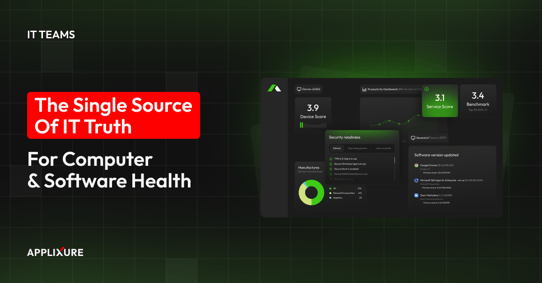
How Applixure Helps You Catch This Early
This entire issue becomes trivial if you have the right visibility. The problem isn’t complexity; it’s that most tools don’t surface OS edition drift, support deadlines, or activation failures in one place. Applixure does.
We’ve already seen Applixure surface dozens of these cases across customer environments, often revealing issues that came as a complete surprise to the IT team.
Here’s how it eliminates the blind spot completely:
1. Instant Visibility Into OS Editions and Support Status
Applixure shows every device’s OS edition, version, and support state in one view. If a machine is still on Windows 11 Pro 23H2, or any out-of-support Pro build, you see it immediately.
No digging. No manual exports. No assumptions.
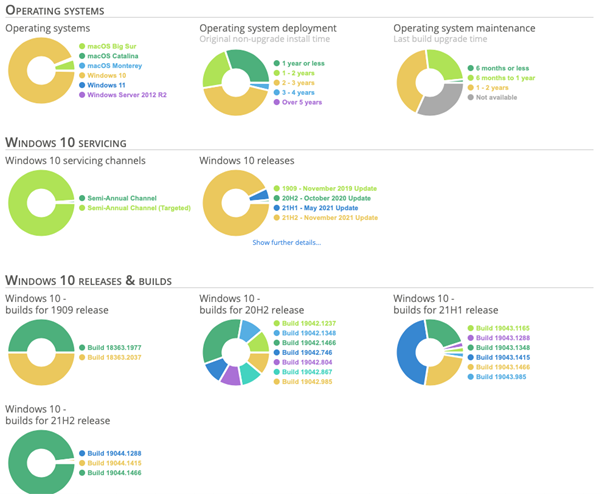
2. Detects Devices That Should Be Enterprise but Aren’t
Applixure highlights mismatches between expected Enterprise environments and devices still running Pro. This makes it obvious when:
- Enterprise activation didn’t happen
- the wrong user logged in
- licensing didn’t trigger the upgrade
- a device silently drifted outside policy
You see the gap before it becomes a problem.
3. Automatic End-of-Life Risk Alerts
When a build hits end-of-support, like Windows 11 Pro 23H2, Applixure flags it. You won’t discover unsupported OS versions by accident during an audit or incident.
4. Feature Update Planning With Real Data
Instead of relying on assumptions or scattered reports, Applixure gives you:
- clear lists of which devices are behind
- which ones are blocked
- which ones are ready
- and which ones require attention now
This removes guesswork around update cycles.
5. Continuous Monitoring, Not One-Off Checks
OS edition and version issues don’t just happen at deployment. Applixure tracks your fleet continuously, so you always know:
- what’s compliant
- what’s drifting
- what’s approaching end-of-support
6. Fleet-Level Oversight in One Dashboard
You don’t need to stitch together SCCM, Intune, licensing portals, and spreadsheets. Applixure consolidates the lifespan reality of your entire fleet, from performance to security posture to OS support, in one simple interface.
7. Early Warning Instead of Late Reaction
The biggest advantage: Applixure surfaces issues you didn’t know to look for. That’s what turns unknown exposure into predictable, manageable work.
.png?width=755&height=540&name=Blog%20-%20security%20locks%20755%20x%20540%20(2).png)
Audit & Compliance Risk: Unsupported OS Versions Break Key Security Frameworks
Running devices on Windows 11 Pro 23H2 after its End-of-Life isn’t just a technical gap; it creates a direct compliance risk.
Most major IT and security frameworks require that operating systems remain supported, patched, and actively maintained.
If an auditor discovers devices still on out-of-support builds, especially when the organisation believed they were on Enterprise, several controls will fail immediately.
Here are the frameworks affected, as of November 2025:
- ISO 27001
- CIS Controls (v8)
- NIST SP 800-53
- GDPR (EU)
- PCI-DSS & HIPAA (industry-specific)
Why This Matters
When a device silently fails to upgrade to Enterprise and stays on Windows 11 Pro 23H2 after EOL, the organisation is operating:
- outside vendor support
- outside internal baselines
- outside audit expectations
Even a small number of such devices can trigger findings, non-conformities, or additional scrutiny during assessments.
This is exactly the kind of issue that gets missed until an audit highlights it, unless you have full visibility into OS editions, activation status, and support timelines across your fleet.

Conclusion: A Hidden Risk That’s Easy to Miss, and Easy to Fix
The failure of Windows 11 Pro devices to upgrade to Enterprise isn’t a theoretical issue; it’s happening right now in real organisations, not because of bad processes, but because the activation workflow can fail silently and without warning.
With Windows 11 Pro 23H2 now out of support, even a handful of missed upgrades can create unnecessary security and compliance exposure.
The danger isn’t that IT teams made a mistake. The danger is that they never knew anything was wrong.
The good news: Once you have visibility into OS editions, support timelines, and activation status, this becomes one of the simplest risks to eliminate.
And that’s exactly where Applixure helps.
Verify Your Windows Upgrade Status Today.
Book a Health Check With Applixure
If you want to know, with certainty, whether your environment has devices stuck on Pro, drifting out of support, or failing Enterprise/Education activation, the fastest path is a guided Applixure Health Check.
If your environment includes 100 computers or more, the Health Check will show you how to gain:
- a clear map of OS editions and support levels
- visibility into devices that missed Enterprise/Education activation
- early-warning signals for compliance and lifecycle issues
- actionable steps to fix the gaps immediately
Book a Health Check and see exactly where your Windows fleet stands, before silent risks become real problems.
To book a Health Check, click here.
Never Miss an Upgrade Again: Set Your ‘Well-Working PC’ Standards
Define what “good enough PC” means with a handful of measurable Key Quality Metrics (KQMs) across experience, security, and manageability. This gives your team a clear baseline to aim for.
Start small: choose 2–3 KQMs per pillar. For example:
- Experience: Boot times under 60 seconds
- Security: No local admin rights
- Manageability: Critical Windows (security) updates installed and verified within 45 days
The goal isn’t perfection; it’s creating a standard everyone can work toward consistently.
Want to go deeper? Download our Key Quality Metrics Guide for step-by-step recommendations.
.png?width=1200&height=628&name=Ad%201%20-%20Support%20to%20Prevention%20(5).png)
Stay Ahead in IT
Get monthly insights and guides for smarter IT management
No spam. Unsubscribe anytime.